Device Connection

Written by Tia Isom

|

Published on

|

Modified on

|

Reading time for 1 min

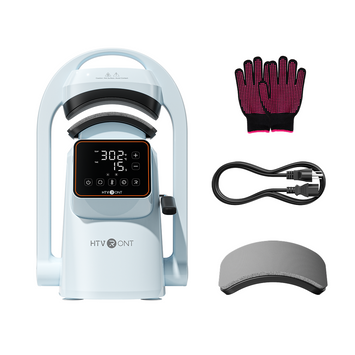
Common Device Connection Troubleshooting Guide

USB Connection

  • Re-seat the USB cable at both ends.
  • Restart the host computer and the device.

Bluetooth Connection

  • Toggle Bluetooth off/on on the host device.
  • Power-cycle the device and attempt to connect again.

Wi-Fi Connection

  • Use the flashing tool to install the latest firmware. flashing tool
  • Verify the network is a 2.4 GHz Wi-Fi band and the password is correct.
  • Ensure the SSID and password contain no special characters (e.g., !, ?, ~).
  • Maintain a stable network environment.

If your device still cannot be connected, please record a video (at least 30 seconds) showing the machine powering on and the complete connection process, then send it to support@htvront.com for assistance.

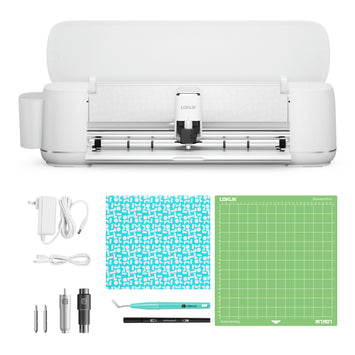
Device Connection Guide for LOKLiK Cutting Machine

  • Click "Device" - "Device Connection" in LOKLiK IdeaStudio™ to learn detailed USB or Bluetooth connection instructions.
Device Connection Step 1

Select Device - Click "Next".

Device Connection Step 2
  • Select "USB" or "Bluetooth" - Click "Next".
Device Connection Step 3

USB Connection Guide

  1. Ensure a 10-inch (25 cm) room behind your device.
  2. USB Connection Step 1
  3. Plug your device in and power it on.
  4. USB Connection Step 2
  5. Connect your device to the computer via USB.
  6. USB Connection Step 3

Notes:

  • If you are using USB Hub to connect, you may encounter the following situations:
  • ① The transmission speed may be slow if the hub connects multiple devices simultaneously;
  • ② The device may not work properly if the hub is incompatible with the devices.

Bluetooth Connection Guide

  1. Ensure a 10-inch (25 cm) room behind your LOKLiK Crafter™.
  2. Bluetooth Connection Step 1
  3. Power on your device and place it around the computer within five meters.
  4. Bluetooth Connection Step 2
  5. Check the Bluetooth on the computer and turn it on.
  6. Bluetooth Connection Step 3
  7. Connect the Bluetooth.

FAQs

Cannot connect the machine via Bluetooth?

  • Ensure your computer is capable of Bluetooth. For desktop computers, you need an external Bluetooth adapter. For laptops, you need to confirm that the Bluetooth switch is turned on.
  • Ensure the computer/laptop is within 5 meters of the LOKLiK Crafter™.

Cannot connect the machine via USB?

  • Ensure the machine is powered on.
  • Check whether there are other Bluetooth devices; try again after turning off the others.
  • If you have further questions, please contact us at support@loklik.com.

Note: Please reconnect the Bluetooth if the computer or the LOKLiK Crafter™ is restarted.

Leave a comment