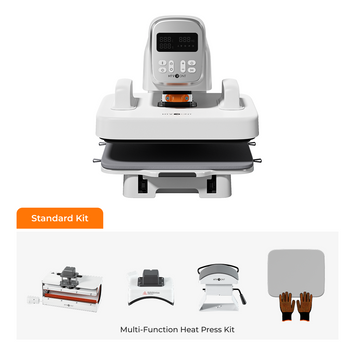
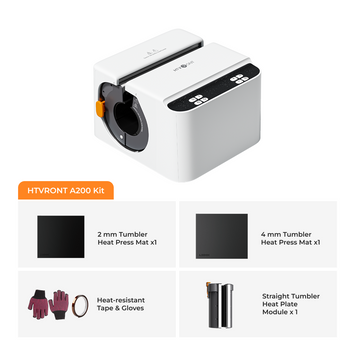
Introduction: Meet the HTVRONT H17 Phone Case Heat Press
The new HTVRONT H17 phone case heat press is designed to help you easily customize not just phone cases, but also coasters, keychains, pet tags, badges, pins, and many more. This guide walks you through beginner-friendly steps for pressing each of these items, along with everything you need to know about using this versatile device.
The global custom phone case market is booming. With over 6.8 billion smartphone users worldwide and the custom accessories market growing at a CAGR of 8.5%, there's never been a better time to explore personalized phone case crafting. The H17 makes it possible to turn everyday items into unique, professional-looking products — whether for personal gifts, small business inventory, or just for fun.
In this guide, I'll walk you through step-by-step instructions for pressing phone cases, badges, and coasters, while also covering all the essential information you should know about this machine.
Materials and Tools You'll Need
Before you start, make sure you have everything ready. Here's what you'll need for your H17 projects:
💡 What makes H17 different? Unlike traditional heat presses that use direct heat transfer, the H17 uses vacuum technology to pull the sublimation film tight against the surface of your item. This ensures crisp, bubble-free transfers even on curved surfaces like phone cases with up to 135° edge curves.
Heat Press Settings for Different Items
Here are the recommended time and temperature settings for pressing different items with the H17. Always start with these baseline settings and adjust based on your specific materials.
Substrate
Material
Tool
Upper Heat Plate
Lower Heat Plate
Preheat Time
Transfer Time
Peeling Method
iPhone Case
TPU / PC
Universal phone case fixture set
135°C
135°C
2–10 s
300 s
Hot Peel
Android Case
TPU / PC
Universal phone case fixture set
135°C
135°C
2–10 s
300 s
Hot Peel
Badge
Metal
Badge fixture set
140°C
140°C
2–10 s
300 s
Hot Peel
Ceramic Plate
Ceramic
Base plate
140°C
140°C
2–10 s
300 s
Hot Peel
Coaster
Leather
Base plate
135°C
125°C
2–10 s
300 s
Hot Peel
Keychain
MDF
Base plate
135°C
135°C
2–10 s
300 s
Hot Peel
Making Phone Cases with a Heat Press Machine
We'll start with pressing a unique design on a phone case. The H17's vacuum technology ensures the sublimation film wraps around curved edges for a seamless finish.
Step 1: Select a Phone Case to Press
Some phone cases are not heat-press compatible. It has to be coated with a polymer layer. It is best to avoid standard plastic or gel cases that are not labelled as heat-safe.
The HTVRONT H17 phone case heat press comes with a phone fixture to mount the case on during pressing. The Android fixture supports major brands such as Samsung, Google, Xiaomi, Huawei, and others, while the iPhone fixture is compatible with all models from iPhone 11 and later.
Click on “My Device” then select “Phone Case Heat Press” from the options.
Click on the “Select Model” menu and choose the phone model you have. This prompts a green frame that assumes the size and shape of the phone cover design. The phone-specific templates ensure the design is aligned accurately.
Click on the “Upload” button on the left side of the screen to upload your image from your gallery or downloads.
Resize and reposition the image to fit within the green frame. Remember to mirror the design, especially if it has any numbers, letters, or logos that need to be properly oriented after transfer.
Step 3: Print Out the Design
Feed the sublimation printer with the film. Always print on an A4-size sublimation film to prevent misalignment in the heating chamber and vacuum sealing failure.
If the printer jams because the sensor cannot detect the film, place a label paper on the bottom left of the film and feed it into the printer again.
If it still fails, attach a clean A4 sheet at the back to improve sensor detection.
Select high-quality glossy paper and choose high-quality print, then press “print”.
Step 4: Adjust the Heat Press Settings
Power on the heat press and press the power button after it starts flashing white.
Set the preheating and pressing temperatures for the lower and upper plates.
Then press the time button to set the preheating and pressing time.
If the device is in memory mode, the set temperature and time will be remembered for the next operation.
Step 5: Preheat the Heat Press
Put on your heat-resistant gloves and place the phone case fixture inside the heating chamber. You can adjust the size to match your phone model using filler blocks that can be removed for smaller cases.
Close the lid and let it preheat for over five minutes. After the green light stays on for 10 minutes, place your printed film on the heat press with the matte side facing up for it to dry for 5 minutes, ensuring better results.
Step 6: Cover the Lens Gap
As you wait, stick the lens pad to the inside of your phone case to cover the camera gaps and secure it in place using heat-resistant tape.
Wipe down the phone case to remove any grease, lint, and any other residue.
Step 7: Mount the Phone Case
Mount the phone case onto the fixture, pressing firmly on the lower-left side to help the fixture contract and fit more easily. A tight fit helps prevent uneven contact and bubbles after transfer.
Place the sublimation print over the heating chamber, with the printed side facing the phone case. Make sure it lies flat and the design is directly above the phone case.
Step 8: Press the Phone Case
Close the heat press lid and wait until the temperature is ready to press the start button. Do not open the lid or press any button while heat transfer is in progress.
Step 9: Peel off the Sublimation Film
When the red light turns green, open the lid and peel off the film while still hot.
Remove the case from the fixture, and the process is complete. Place the phone case on a heat-resistant surface and let it cool for about 2 minutes before handling.
Making Badges / Pins with a Heat Press Machine
Follow along with the YouTube video on making badges with a heat press.
Step 1: Prepare the Design on HTVRONT IdeaStudio Software
Open the HTVRONT IdeaStudio on your phone or computer and start working on a blank canvas. Click on “My Device” and then select “Phone Case Heat Press” from the drop-down menu.
Under “Select Model”, choose “Flat Substrate” and then select “badge” as the item you want to press.
This will create badge templates that you can resize to match your badges.
Step 2: Upload the Image
Upload an image from your computer or phone files.
Resize and reposition it, ensuring it fits within the green frame around the templates. Remember to mirror the design using the “Flip” button, especially if it contains numbers, letters, and logos.
Step 3: Print the Design
Load the sublimation printer with the sublimation film with the matte side facing up. Select high-quality glossy paper and set it to high quality.
If the printer does not have these options, select “Transparency” or “Thick paper” before printing to improve the quality.
Step 4: Power up the Heat Press and Adjust Settings
If you are using the device immediately after a different project, press and hold the power button for 3 seconds to reset it to the default temperature and time settings, then set it for your badge.
Step 5: Insert the Flat Base and Badge Fixtures
Wear your gloves and insert the flat base plate in the heat chamber, then place the badge holders.
Step 6: Preheat the Heat Press
Preheat the chamber for 5 minutes. After the green light has stayed on for ten minutes, place the printed film on the heat press to dry for at least 5 minutes.
Step 7: Install the Badges onto the Fixtures
Open the lid and place the badges on the fixtures.
Then place the sublimation film on the heating chamber with the matte side facing down, aligning every image to a badge underneath. The film should fully cover the silicon ring inside the chamber.
Step 8: Close the Lid and Press “Start”
Once the temperature is ready, press the green start button.
Step 9: Peel off the Sublimation Film
When the countdown ends, open the heat chamber with the gloves on.
Peel the film while still hot by taking the badges out. Your badges are ready!
Making Coasters with a Heat Press Machine
Next, we will design coasters and other flat surface substrates.
Step 1: Prepare the Design on HTVRONT IdeaStudio Software
Open a blank canvas on HTVRONT IdeaStudio. Select the HTVRONT H17 phone case heat press and “Flat Substrate” under the model type.
Then you can choose the design template from the options provided.
You can also make a custom one by selecting a shape from the left side menu, then resizing and reshaping it on the canvas.
Step 2: Upload the Design
Upload a design from your files, and resize it until it fills the green grid surrounding the template. Make sure to remove any guide shapes from the bottom layer by sending the image to the back, so they don't get printed with the picture. Don't forget to mirror the image.
Step 3: Print the Design
Load the printer and press print.
If you print an extra design that will not be used immediately, store it in a sealed container to prevent it from absorbing moisture, which reduces the quality of the heat transfer. Otherwise, it is recommended to use any printed sublimation within 4 hours of printing.
Step 4: Adjust the Heat Press Settings and Preheat
Set the preheating and pressing temperatures, then the pressing time, and preheat for 5 minutes. Place the film on the heat press to dry for 10 minutes.
Step 5: Flip the Flat Base and Position the Coaster
Put on your gloves and flip the flat base in the heating chamber.
Then place the coaster on the base, adjusting the position to ensure it is well within the template.
Step 6: Close the Plate and Press
Close the plates and press the “Start” button once the pressing temperature is reached.
Step 7: Peel the Film While Hot
After pressing and with your gloves on, peel the film from the coaster while still hot.
Other Products You Can Make with a Heat Press Machine
The HTVRONT phone case heat press can also be used to customize other items like keychains, ceramic tiles, leather accessories, cardholders, luggage tags, fridge magnets, and mini mouse pads. All you have to do is change the setup in the heat chamber and adjust the pressing settings.
When pressing leather, it might sometimes stick to the base plate after ironing. To prevent it, place a sheet of clean, plain paper underneath the leather substrate before pressing, or use tweezers to lift the stuck leather.
Precautions and Helpful Tips While Using the Heat Press
Follow these tips to make the most use of the heat press and increase its durability.
1. What the Indicator Lights on the Heat Press Mean
The same button on the heat press might be used to adjust different settings. Different indicator lights represent the different cases.
Buttons
Color
Status
Power
Flash white
Power connected
White
Power on
Temperature
Flash Yellow
Adjust the upper heat plate temperature
Red
Adjust the lower heat plate temperature
Time
Yellow
Adjust preheat temperature
Red
Adjust the heat transfer time
Start
Flash Red
Heating or cooling is in progress
Green
Target temperature reached
Flash green 3 seconds
Heat transfer is complete
Pressing any button as the heat transfer is in progress immediately stops the process and returns the device to standby mode. Use this feature in case you need an emergency stop.
2. Use Heat-Resistant Gloves
The heat plates can reach temperatures of over 200°C, and holding them with bare hands will cause serious burns. Wearing the heat-resistant gloves while handling a hot heat press or freshly pressed items helps prevent such accidents.
3. Lifting the Flat Base
You can stick heat-resistant tape to the side of the plate beforehand, or use tweezers to create an easy-to-lift tab.
Do not use regular tape because it easily melts and leaves behind adhesive residue.
4. Regularly Clean the Heat Press
After the machine cools down, wipe the heat plates using a dry cloth to remove any ink or adhesive residue. You don't have to use harsh detergents or cleaners.
5. Store the Heat Press in a Dry and Safe Place
When not in use, cover the device with a dust cloth and store it in a dry and dust-free place. Avoid placing heavy items, such as stacking books on the heat press, for extended periods.
Frequently Asked Questions on Using the Phone Case Heat Press
Which phone cases can I customize using the Heat Press?
The phone case should be sublimation-ready, heat-resistant, and usually made of polymer plastic or silicone. The Android fixture can hold cases of popular phone brands like Samsung, Google, Xiaomi, and Huawei, while the iPhone one supports the iPhone 11 and more recent models. Always check that your case is labelled as "sublimation-ready" or "heat-safe".
Should I mirror the designs before printing?
Yes. This is important if the design includes letters, numbers, or logos that make orientation after transferring important. The H17 transfers the design as a mirror image during the vacuum process, so you need to flip it before printing. You don't need to mirror the design if it is a plain image with no text or directional elements.
Can I press curved phone cases with this heat press?
Yes. The HTVRONT phone case heat press seamlessly transfers designs even on curved edges using vacuum technology. You can press phone cases that curve up to 135°. The vacuum pulls the sublimation film tightly against the case surface, ensuring crisp, bubble-free transfers on both flat and curved areas.
Is it possible to press more than one item at the same time?
Yes. However, place the items in the heating chamber at least 1 cm apart to prevent heating interference. If pressing more than one at a time, we recommend pressing flat surfaces like coasters or badges rather than phone cases, as phone cases require precise vacuum sealing that works best with a single item.
What should I do if my design appears faded or incomplete after pressing?
Faded designs usually indicate insufficient heat, time, or pressure. First, check your temperature settings—the upper and lower plates should be at the recommended temperatures for your material. Make sure you've preheated the chamber for at least 5 minutes and that the sublimation film is placed with the matte side facing the correct direction. Also ensure the film covers the full silicone ring inside the chamber for proper vacuum sealing. If issues persist, run a test press with a scrap item to dial in your settings.
Conclusion
The HTVRONT H17 phone case heat press opens up a world of creative possibilities. Whether you're making custom phone cases for friends and family, starting a small business selling personalized accessories, or just exploring a new hobby, this machine makes the process simple and enjoyable.
What sets the H17 apart is its vacuum technology—it's not just a heat press, it's a complete sublimation system designed to handle curved surfaces with ease. From phone cases to badges to coasters, the H17 delivers professional-grade results that will make your creations stand out.
Remember: patience and practice are key. Don't be discouraged if your first few attempts aren't perfect—each project teaches you something new about temperature, timing, and technique. With time, you'll develop a feel for what works best with your materials.
✅ Quick Checklist: Your H17 Phone Case Heat Press Project
Choose the right item — ensure it's sublimation-ready and compatible
Design & mirror — create your design in HTVRONT IdeaStudio, mirror if it has text/logos
Print on sublimation film — use A4 size film with the matte side up
Set correct temperature & time — refer to the settings chart above
Preheat the chamber — 5 minutes minimum, wait for the green light
Mount your item securely — tight fit prevents bubbles and uneven contact
Position the film correctly — printed side facing the item, cover the silicone ring
Press and wait — don't interrupt the cycle
Hot peel — peel the film while still hot
Clean and store — wipe the plates after cooling, store in a dry place


 Cart Unlocks Add-On Deals