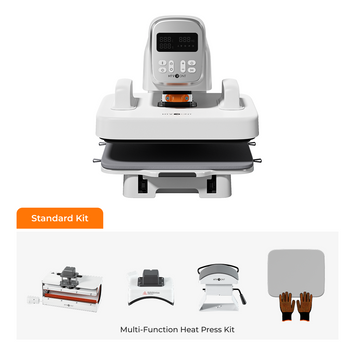
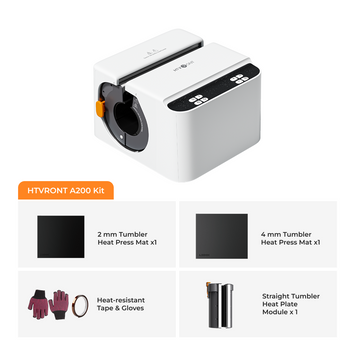
Tutorial Guide for A300 Hat Heat Press-cover

Tutorial Guide for A300 Hat Heat Press

Written by Tia Isom

|

Published on

|

Modified on

|

Reading time for 4 min

Introduction

The A300 Auto Hat Heat Press, launched by HTVRONT in November 2025, is a professional device specifically designed for customizing hats. Tailored to meet the needs of small businesses and personal studios, this machine helps increase orders, speed up production, and reduce costs in your hat customization business. Supporting a variety of hat types, the A300 is a reliable partner that enhances your profitability and efficiency. Whether you’re a beginner or an experienced professional, this guide will take you step-by-step through the process of using the A300 to achieve high-quality results with ease.

Step 1. Preparation

In the package, you will find the A300 Hat Heat Press machine (equipped with a large hat platen by default), a small hat platen, a power cord, heat-resistant gloves, and a user manual. 

You will need to prepare the hat, heat-resistant tape, a Teflon sheet, and your design (based on heat transfer vinyl or DTF printing film). During the preparation stage, you should wear the heat-resistant gloves until you have completed all the work.

Accessories of Hat Heat Press


Step 2. Power on

After connecting the machine to the power supply, press the "POWER" button to start the machine.

A300 Hat Press Setting Button


Step 3. Set temperature and time

There are two ways to set the temperature and time: one is the quick setting mode, and the other is the customized setting mode.

Quick Mode

Press the "TEMPERATURE" button to enter quick setting mode. The temperature value will start flashing, and you can use the "+" and "-" buttons to adjust the heat press temperature.

Set the time and temperature of A300 Hat Press

Pressing "TIME" will cause the time value to start flashing. Similarly, use the "+" and "-" buttons to set the heat press time.

Time range: 1-999 seconds

Temperature range: 104°F to 410°F (40°C to 210°C)


Custom Settings Mode:

There are two preset modes, Mode A and Mode B.

Single-click the "MODE" button to select Mode A. This mode is primarily used for heat pressing Heat Transfer Vinyls.

Select the Mode A


Double-click the "MODE" button to select Mode B. This mode is primarily used for Embroidered Patches.

Select Mode B


Triple-click the "MODE" button to exit custom settings mode and switch to quick settings mode.


Note:

Both Mode A and Mode B can be reset. If you want to change the settings for Mode A and Mode B, simply enter the corresponding mode and then click the "TEMPERATURE" or "TIME" button to start making changes (the operation is the same as changing the temperature and time in quick settings mode).

After selecting the temperature and time, the "R" indicator will turn red, and the device will continuously heat up to the specified temperature. Proceed to the next step during the preheating phase.


Step 4. Place the hat and design

First, hold the top handle and push it backward.Hold the top handle and push it backward


Second, press down the hat stretcher to secure the hat on the hat platen


Finally, attach your design with heat-resistant tape and cover PTFE sheet

Note: The PTFE sheet isn't strictly necessary, but it helps to distribute the heat more evenly during heat pressing and provides better protection for your design. Therefore, if you have a PTFE sheet, it's best to use it.


Step 5. Start heat pressing

We started the preheating process in Step 3, and completed Step 4 (placing the hat and design) during the preheating phase. Once the temperature reaches your set temperature, the "R" button will turn from red to green (accompanied by a "beep" sound). This means you can start the heat pressing process.

At this point, pull the heat plate directly over the design to cover the hat.

Pull the heat plate to cover the hat


Tap the "R" button the hat platen will lift up and apply the pressure automatically

Tap the "R" to heat press the hat


Note: In case of any emergency during the heat pressing process, you can press any button to terminate the heat pressing. 

When the heat pressing is complete, the hat platen lowers automatically while a beeping sound is emitted three times.


Step 6. Remove the hat, cold peel & Done

Move the heat plate back, and take off your hat.

Move the heat plate back 

Wait for your hat to cool down and then peel off the transfer film (Cold Peel). If you are heat pressing Puff heat transfer vinyl or sublimation paper, you need to peel it while it's still hot (Hot peel).


Replace the hat platen

We include two hat platens to fit different hat sizes. The machine is equipped with the large hat platen by default. 

If you need to replace it with the smaller hat platen, ensure the machine is powered off and the hat platen is cool. 

Wear heat-resistant gloves, slide the heat plate backward, and then pull out the current platen. Install the new hat platen.

Install the new hat platen 

Tutorial Video for A300 Hat Press

Conclusion

The A300 Auto Hat Heat Press is more than just a tool—it's a business partner that empowers small businesses and personal studios to thrive in the competitive hat customization market. With its user-friendly design, support for multiple hat types, and customizable settings, the A300 allows you to produce professional-grade results efficiently and cost-effectively. By following this guide, you can maximize the potential of the A300 and bring your creative ideas to life while boosting your profitability. Whether you're looking to expand your business or create personalized gifts, the A300 is the trusted solution to help you succeed.

Leave a comment