How to Use A T-shirt Press H10 12x10in Heat Press Tutorial

How to Use A T-shirt Press [H10 12x10in Heat Press Tutorial]

Written by Tia Isom

|

Published on

|

Modified on

|

Reading time for 3 min

Introduction of H10 T-shirt Press

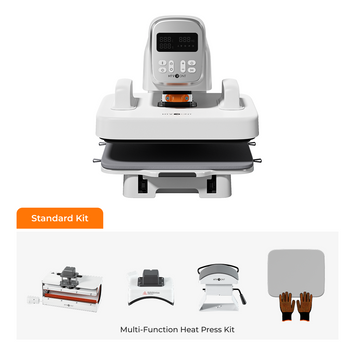
The HTVRONT H10 is designed for larger areas and easier heat pressing, featuring an expanded heating area, dual-handle design, and real-time pressure display. It delivers an upgraded heat press experience, allowing everyone from beginners to seasoned crafters to achieve professional-level results with ease.
Now, let’s dive into the step-by-step tutorial on how to use the HTVRONT H10 effectively, so you can start creating your own professional-quality projects with ease.

Preparation

Here's what you'll need to prepare: a Heat Press Mat, T-shirts, a PTFE Sheet, your design, and of course, the H10 Portable T-shirt Press.

Usage Instructions

Button Details

H10 Portable T-shirt Press Button Details 

Power on the H10 12x10in Heat Press

After plugging in the power cord, the "Power" button will start flashing white, indicating that the heat press is powered on. Press the "Power" button once, and the white light will stay solid, meaning the heat press is now turned on.

Power on the machine


Set the temperature of heat pressing

Press the "Temperature" button, then use the "+" and "-" buttons on the right to set your desired heat press temperature. Once you've adjusted the temperature, press the "Temperature" button again to confirm your selection.
Tip: If you don’t press the "Temperature" button to confirm, the current temperature will automatically be set as the heat press temperature after three seconds.

Adjust the temperature of H10 T-shirt Press


Set the time of heat pressing

Press the "Time" button and follow the same steps to set the desired heat press time.

Set the heat pressing time of H10 T-shirt Press


Additional Functions of H10 Buttons:


  • Press and hold the "Temperature" button for 3 seconds to switch between Fahrenheit and Celsius.
  • Press and hold the "Time" button for 3 seconds to switch between lb and kg.
  • Press and hold the "Power" button for 5 seconds to reset the H10 heat press to its default settings and turn it off automatically.

Pre-heating the H10 Heat Press

After completing the parameter settings, the H10 T-shirt Press will begin preheating. During the preheating process, the "R" button will glow red. Once the H10 reaches the preset temperature, the "R" button will turn green, indicating that it’s ready to lift and start heat pressing.

Pre-heating the H10 T-shirt Press


Smooth the T-shirt

If your T-shirt isn’t brand new, it may have wrinkles caused by daily wear or folding. These uneven wrinkles can create inconsistent contact between the HTV vinyl and the fabric, affecting heat transfer and potentially resulting in unclear patterns or incomplete adhesion. Therefore, we recommend using the H10 to iron out the wrinkles on your T-shirt before heat pressing the design.

Smooth the T-shirt with H10

Smooth the t shirt with H10-2


Place your design and PTFE sheet

Although a PTFE sheet is not mandatory, we strongly recommend covering your HTV vinyl with a PTFE sheet to ensure even heat distribution and to prevent scorching your fabric. All of our heat press basic kits include a complimentary PTFE sheet, so you don’t need to purchase one separately. If your PTFE sheet is missing, parchment paper can serve the same purpose. Of course, you can also order a standalone PTFE sheet from our website.

Place your design and Teflon sheet


Press the "R" to heat press your shirts

After pressing the "R" button, the H10 heat press will begin the heat press countdown. During this time, the data panel will display the current pressure value you are applying. We recommend maintaining the pressure between 49-59 lb until the countdown ends. Once the countdown is complete, the heat press will emit a beep sound to notify you.

Press the R to heat pressing your shirts


Remove the heat press and peel it

After the countdown ends, remove the heat press and the PTFE sheet. If your HTV vinyl requires a cold peel, wait for it to cool down before peeling off the film. If it requires a hot peel (such as puff HTV or sublimation paper), peel off the film immediately.

Remove the heat press and wait for cold peel


Quick Reference Chart

H10 Portable T shirt press Quick Referan Chart for PC 1
H10 Portable T shirt press Quick Referan Chart for PC 2
H10 Portable T shirt press Quick Referan Chart for Mobie 1
H10 Portable T shirt press Quick Referan Chart for Mobie 2

Refer to the video tutorial for detailed step-by-step guidance.

Conclusion


The HTVRONT H10 T-shirt press is an excellent tool for achieving professional-quality results with ease, whether you’re a beginner or an experienced crafter. 

By following the step-by-step instructions outlined above, you can ensure optimal performance and create stunning designs on your projects. With its user-friendly features, real-time pressure display, and versatile functionality, the H10 makes heat pressing simple and efficient. Start crafting today and bring your creative ideas to life effortlessly!


Contact form