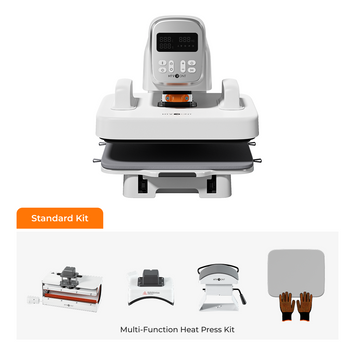
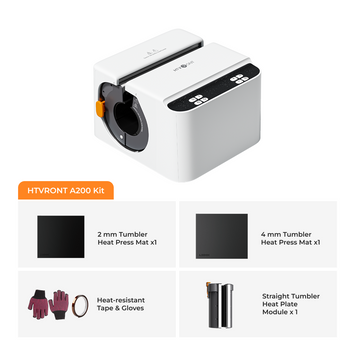
Having a cat or bunny phone case is a great way to express your personality while protecting your phone. Sometimes you just can't seem to get the exact design you want, or you prefer one with your pet on it. The HTVRONT phone case heat press makes it very easy for you to customize a design and press it onto your Android or iPhone phone case.
Sublimation heat pressing uses heat and pressure to transfer dye from a printed film into the coating of a phone case, creating a permanent, full‑color design that won't peel or fade. After pressing, you can attach floppy ears, tails, or whiskers to the vibrant design to make it look even more alive with 3D elements. This guide will walk you through the entire process — from designing your pattern to adding the final 3D touches.
Materials and Tools You Need
Gather these essentials: the HTVRONT phone case heat press, sublimation film, a blank phone case, and basic tools.
The HTVRONT phone case heat press — the dedicated machine for sublimation phone cases.
A pair of heat‑resistant gloves — for safe handling during the hot peel.
A sublimation printer and ink — with the correct ICC profile.
A computer or mobile device — for design software.
HTVRONT IdeaStudio — free design software with phone case templates.
A bunny or cat design — your own artwork or a pre‑made template.
A blank sublimation‑ready phone case — poly‑coated.
Heat‑resistant tape — to secure the film.
Optional tools for 3D additions:
Ears, tails, and whisker attachments — made of felt, EVA foam, pom poms, or faux fur.
Hot glue and a low‑temperature glue gun, or E6000 glue.
Clear acrylic spray — for protecting the design.
Process to Design and Press the Phone Case
Follow these steps from design to finished phone case — each stage builds on the last for a professional result.
Step 1: Design and Print the Pattern
First, you need to design a bunny or cat pattern. Open HTVRONT IdeaStudio on your computer or mobile device, upload your artwork, and select the "Phone Case Heat Press" template. Choose your phone model from the pre‑made list (Samsung, Google, Xiaomi, Huawei, etc.). A green frame will appear — fit your image within the frame. Remember to mirror the image before printing if you're using a template where the design is printed face‑down.
Load sublimation paper into your sublimation printer with the printable side facing up, and print your design.
Step 2: Power On the Heat Press Machine
Connect the heat press to a power source and press the blinking power button to turn it on. The machine will begin its startup cycle.
Step 3: Input the Correct Pressing Settings
The temperature button sets the temperature for both the upper and lower heating plates. You can switch between Celsius and Fahrenheit by double‑clicking the setting button, then adjust the numbers using the plus and minus buttons.
Phone Case Material
Temperature (°C)
Time (Seconds)
Preheat Time
Hard Plastic
190°C
300
2–10
Faux Leather
160°C
250
2–10
Silicone (coated only)
185°C
300
2–10
If you would like to reuse the exact settings in your next project, ensure the device is in memory mode before you start keying them in.
Step 4: Place the Fixture in the Heating Chamber and Adjust the Size
Align the phone fixture's dowels with the holes in the heating chamber to secure it in place. The filler blocks on the fixtures are movable to adjust the size to match the phone case. Use tweezers to remove the filler blocks for smaller cases.
Step 5: Preheat the Heat Press & Prepare the Film
Close the heat press lid and press the start button to preheat for 5 minutes. After the green light comes on, place the printed sublimation film on the heat press with the matte side facing up for 10 minutes. This helps the ink dry for better results.
Step 6: Stick the Lens Pad on the Case
Next, stick a camera protector pad on the phone case using heat‑resistant tape. The lens pad protects the camera cutout area from the extremely high temperatures. Without it, the area around the camera may distort or warp.
Step 7: Mount the Case & Position the Film
Wear your heat‑resistant gloves and mount the phone case on the fixture. Ensure you press firmly on the lower left for the fixture to contract and fit easily. A loose fit might result in bubble formation during pressing due to an uneven surface.
Cover the heating chamber with the film, with the printed side facing the phone case. Use the print as a guide to align it with the phone case outline. Ensure the film does not move around as you close the heat press lid.
Step 8: Press, Peel & Finish
Wait until the set temperature is ready, then press the start button. Avoid opening the lid or pressing any buttons while pressing is in progress, unless it's an emergency stop. Keep a close eye on the heat press throughout the process.
After the time countdown reaches zero, the start button changes from red to green. Open the lid and peel off the sublimation paper while still hot (hot peel). Only remove the phone case from the fixture after peeling the film.
Place the case on a cool, heat‑resistant surface and leave it to cool for a few minutes before removing the lens pad. Your design is ready!
Adding 3D Ears, Tails & Whiskers (Optional)
Take your phone case to the next level with 3D attachments that bring the design to life.
Once your phone case is pressed and cooled, you can add 3D elements to make it even more adorable. Here's how:
Plan your layout: Before adding any attachments, ensure the headphone jack, charging port, volume and power buttons, and the camera and flash are clear of any additions.
Choose lightweight materials: Use pom poms, felt, EVA foam, or faux fur for the ears, tails, and whiskers — they won't weigh down the case.
Use the right adhesive: Use hot glue at a low temperature setting or B-7000 glue instead of superglue, which can cause discoloration and brittleness on the phone case.
Apply the attachments: Glue the nose and whiskers in the center, away from the camera. Attach ears to the top corners and tails to the bottom or side.
Optional sealant: Spray two light layers of clear acrylic sealant (matte or glossy) to protect the design from scratches, UV fading, and moisture.
✓ Bunny & Cat Phone Case Checklist
□ Design and mirror your cat/bunny artwork
□ Print on sublimation paper with correct settings
□ Set H17 to the right temperature for your case material
□ Adjust the fixture to fit your phone model
□ Preheat for 5 minutes
□ Apply the lens pad to protect the camera cutout
□ Place film printed side down on the case
□ Press for the full time — don't open early
□ Peel the film while hot
□ Let the case cool completely before handling
□ Add 3D attachments with low‑temperature glue
Frequently Asked Questions
Quick answers to the most common questions about making bunny and cat phone cases.
Does attaching 3D ears and tails to the phone case damage it?
No. To be safe, use hot glue at a low temperature setting or B-7000 glue instead of superglue, which can cause discoloration and brittleness. Use lightweight materials such as pom poms, felt, EVA foam, or faux fur for the attachments.
Is it okay to apply a sealant on the phone case after pressing?
Yes. Sealant helps protect your design from scratches, UV fading, and moisture. Apply two light layers of clear acrylic spray in matte or glossy, or use epoxy resin to seal the design.
How can I add ears, nose, and whiskers without covering the ports?
Start with a well‑planned layout before printing, ensuring the headphone jack, charging port, volume/power buttons, and camera are clear of any additions. After pressing, use thin, flexible materials for attachments and glue the nose and whiskers in the center, away from the camera.
How do I prevent bubbles from forming on the cover after pressing?
Ensure the phone case is free of grease, dust, and other coatings before pressing. Use the correct temperature and time settings. Also, ensure the film is flat and the fixture fits snugly.
Why is the design dull on the sublimation film?
Colors in sublimation inks are activated by heat. It is completely normal for the printed design to appear faded before pressing. The colors will become vibrant after being transferred onto the phone case.
Final Thoughts
Making bunny and cat phone cases with the HTVRONT H17 is a fun and creative project that lets you express your personality. With the right materials and settings, you can create professional‑quality cases that make perfect gifts or a great addition to your own phone.
Once you've mastered the basics, experiment with different designs, colors, and 3D attachments. Start with simple designs and work your way up — the possibilities are endless!


 Cart Unlocks Add-On Deals