【iOS/Android】Device Connection

Written by Tia Isom

|

Published on

|

Modified on

|

Reading time for 1 min

Common Device Connection Troubleshooting Guide

USB Connection

  • Re-seat the USB cable at both ends.
  • Restart the host computer and the device.

Bluetooth Connection

  • Toggle Bluetooth off/on on the host device.
  • Power-cycle the device and attempt to connect again.

Wi-Fi Connection

  • Use the flashing tool to install the latest firmware.
  • Verify the network is a 2.4 GHz Wi-Fi band and the password is correct.
  • Ensure the SSID and password contain no special characters (e.g., !, ?, ~).
  • Maintain a stable network environment.

If your device still cannot be connected, please record a video (at least 30 seconds) showing the machine powering on and the complete connection process, then send it to support@htvront.com for assistance.

Device Connection Guide for LOKLiK iEngrave

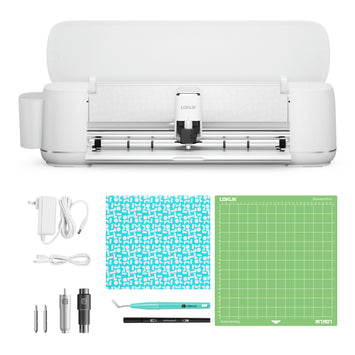
Device Connection Guide for LOKLiK Cutting Machine

iOS/Android: For mobile devices, only Bluetooth connection is supported.

  1. Leave 25 cm (10 in) space behind the machine.
  2. Power on the machine and turn it on.
  3. Ensure the machine is within 5 meters of the phone.
  4. Open LOKLiK on your phone and click "+" to start the connection.
  5. Ensure Bluetooth on your phone is activated.
  6. Search for the device and select the corresponding machine to connect.
  7. Now you are all geared up! Let's craft your ideas out!

Note: You may need to grant LOKLiK permission to use Bluetooth on phones with Android 13 and above. Go to: Settings - Apps & Services - LOKLiK - Permissions - Nearby Devices to grant permission.

Leave space behind the machine
Step 1: Leave space behind the machine
Power on the machine
Step 2: Power on the machine
Ensure machine is within range
Step 3: Ensure machine is within range
Start the connection
Step 4: Start the connection
Activate Bluetooth
Step 5: Activate Bluetooth
Select device to connect
Step 6: Select device to connect
Start crafting
Step 7: Start crafting

Leave a comment