Driver Update for LOKLiK iEngrave
If your Mac prompts you to update the driver when connecting to LOKLiK iEngrave, please update the driver to version: CH34XSER.
1. Driver Download: CH34XSER
Download Link: CH34XSER
System Requirements:
- OS X 10.9 to OS X 10.15
- OS X 11.0 (Big Sur) and above
2. Installation
Please select the appropriate driver format for your Mac (.dmg or .pkg) based on your system version and chip type.
How to Check for Rosetta:
- Click the Apple logo in the top-left corner → About This Mac → System Report.
- In the sidebar, select Software → Installed Software, and search for "Rosetta".
- If nothing appears, Rosetta may not be installed on your computer.
(1) Installing the .pkg Driver
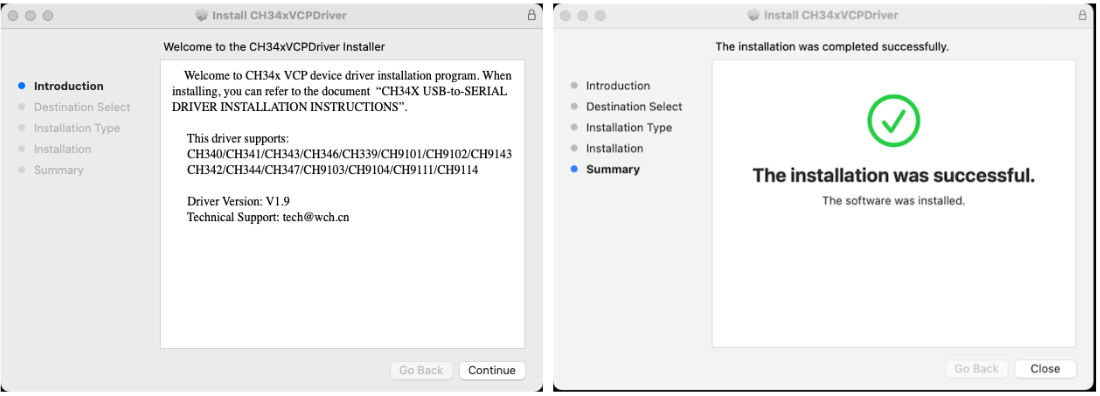
- Double-click the driver file and follow the on-screen instructions to complete the installation.
- Perform the following additional steps based on your macOS version:
-
For macOS 11.0 and above:
- Open Launchpad.
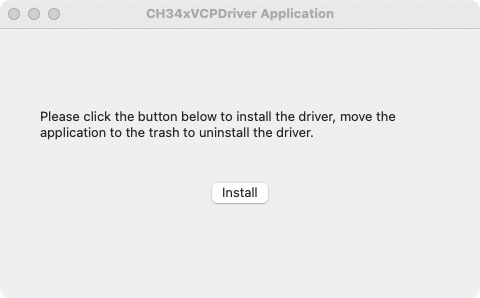
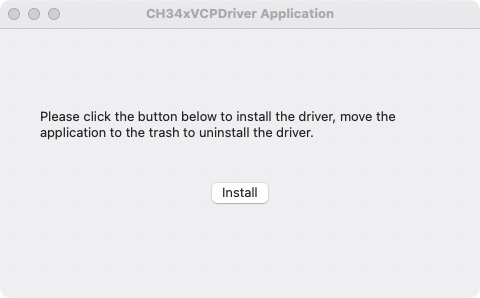
- Locate and open the CH34xVCPDriver application.
- Click the Install button within the application.
-
For macOS 10.9 to 10.15:
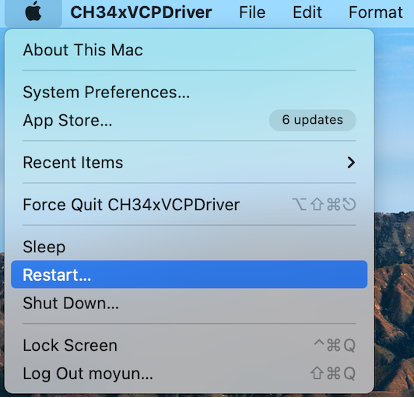
- After completing the driver installation, click Restart to reboot your computer.
- Once your Mac has restarted, proceed with the steps below.
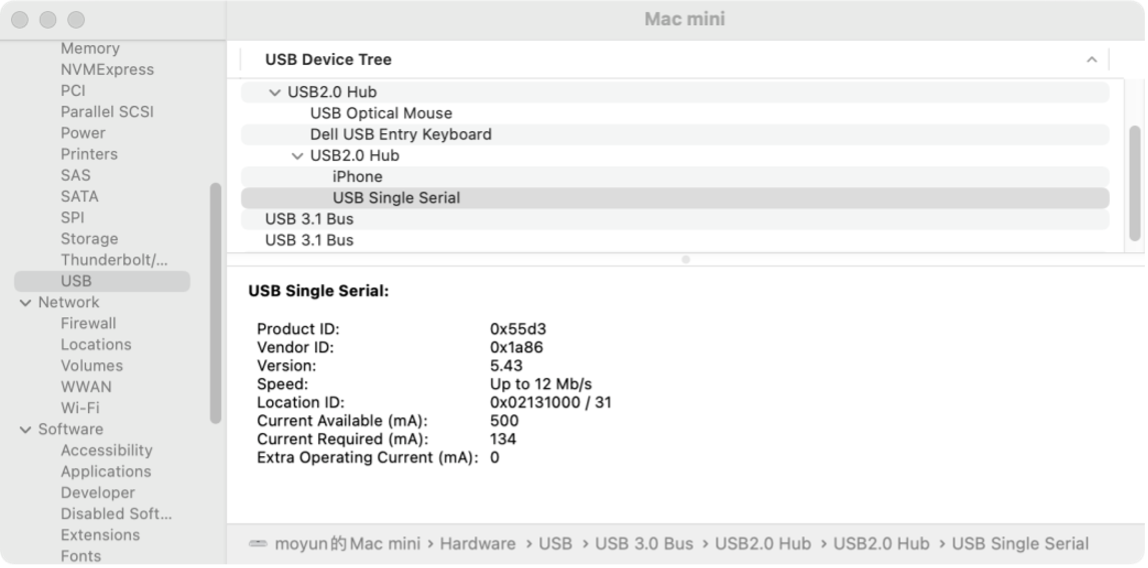
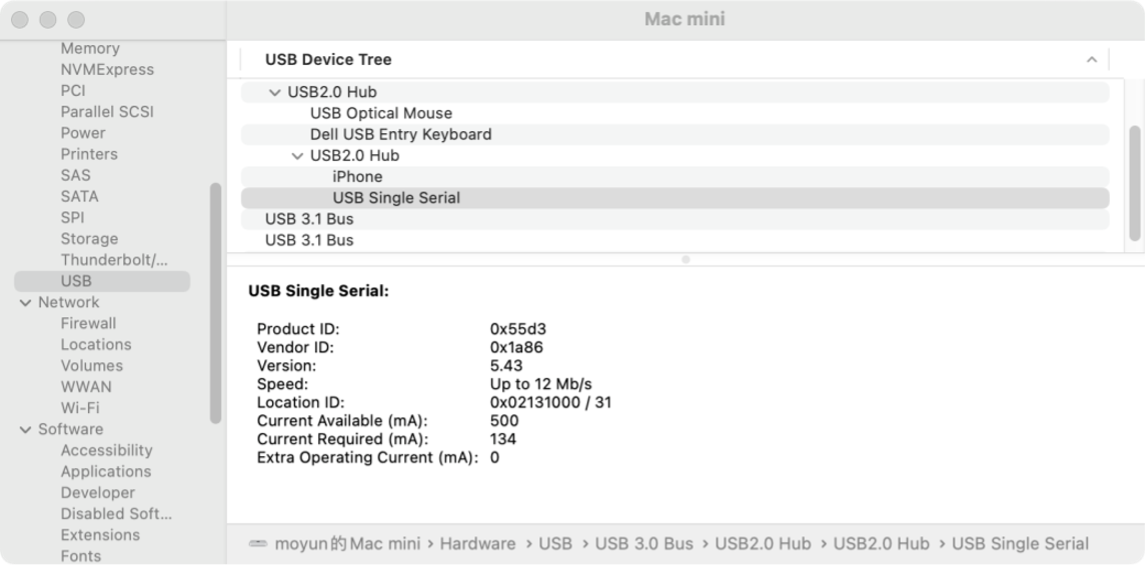
- After inserting the USB-to-Serial device into the USB port, open System Report → Hardware → USB.
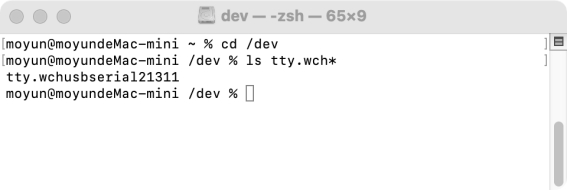
- Open the Terminal application and enter the command:
ls /dev/tty*.
If the USB device is working correctly, you will find a device with Vendor ID: [0x1a86].
After entering the command, you should see something like tty.wchusbserialx. If not, please restart your computer and try again.
(2) Installing the .dmg Driver
- Click the
.dmgfile, then drag the CH34xVCPDriver into the system's Applications folder. - Open Launchpad, locate the CH34xVCPDriver application, open it, and click the Install button.
- After inserting the USB-to-Serial device into the USB port, open System Report → Hardware → USB.
If the USB device is working properly, you should see a device with Vendor ID: [0x1a86].
(3) Security Permissions
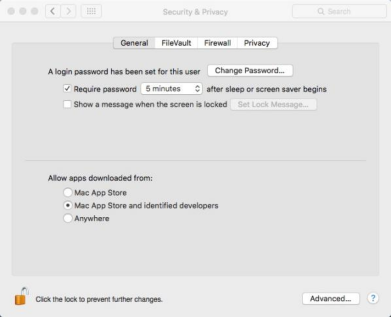
macOS High Sierra 10.13 introduced a new feature requiring user approval before loading new third-party kernel extensions.
If you see a message saying “Cannot verify developer”, go to System Settings → Privacy & Security, and click “Allow Anyway”.
3. Post-Installation Check
After completing the installation, please restart your computer. Then connect the open-frame laser engraver via USB.
If no prompt to update the driver appears when searching for the device, the driver has been successfully updated.
4. Uninstalling the Driver
- OS X 10.9–10.11: Open the Terminal and enter the following commands:
- OS X 10.12–10.15: Open the Terminal and enter the following commands:
- OS X 11.0 and above: Move the application to Trash to uninstall. Restart your computer before reinstalling the driver.
sudo rm -rf /Library/Extensions/CH34xVCPDriver.kext sudo rm -rf /var/db/receipts/*CH34xVCPDriver*.*
sudo rm -rf /Library/Extensions/CH34xVCPDriver.kext sudo rm -rf /Library/Extensions/CH34xVCPControlDriver.kext sudo rm -rf /var/db/receipts/*CH34xVCPDriver*.* sudo rm -rf /var/db/receipts/*CH34xVCPControlDriver*.*


Black Friday Gift