

 Cart Unlocks Add-On Deals
Spend $100 → Get the iPaint Machine for just $39.99

$49.99
Regular price
Regular priceSale price
Unit price
per
$49.99
$299.99
Spend $150 → Get the Phone Case Machine for just $159.99

$114.99
Regular price
Regular priceSale price
Unit price
per
$114.99
$279.99
Recommended products
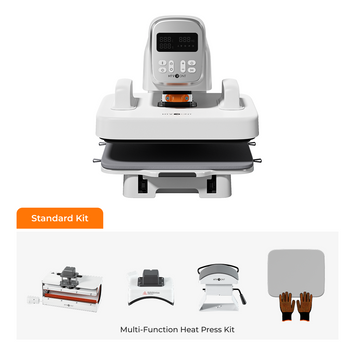
$439.99
Regular price
Regular priceSale price
Unit price
per
$439.99
$439.99

$279.99
Regular price
Regular priceSale price
Unit price
per
$279.99
$279.99

$159.99
Regular price
Regular priceSale price
Unit price
per
$159.99
$159.99
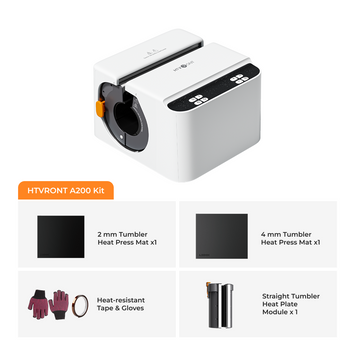
$279.99
Regular price
Regular priceSale price
Unit price
per
$279.99

$119.99
Regular price
Regular priceSale price
Unit price
per
$119.99
Summary
Your promotional coupon
TIPS:promotional coupon
Estimated Total:
$0.00


